DPF Tracker
Using the graphical user interface, DPF Tracker, you track, repeat and delete jobs in the DPF system and you cancel jobs. On how to administrate jobs using DPF Tracker, refer to Administrate Jobs with DPF Tracker.
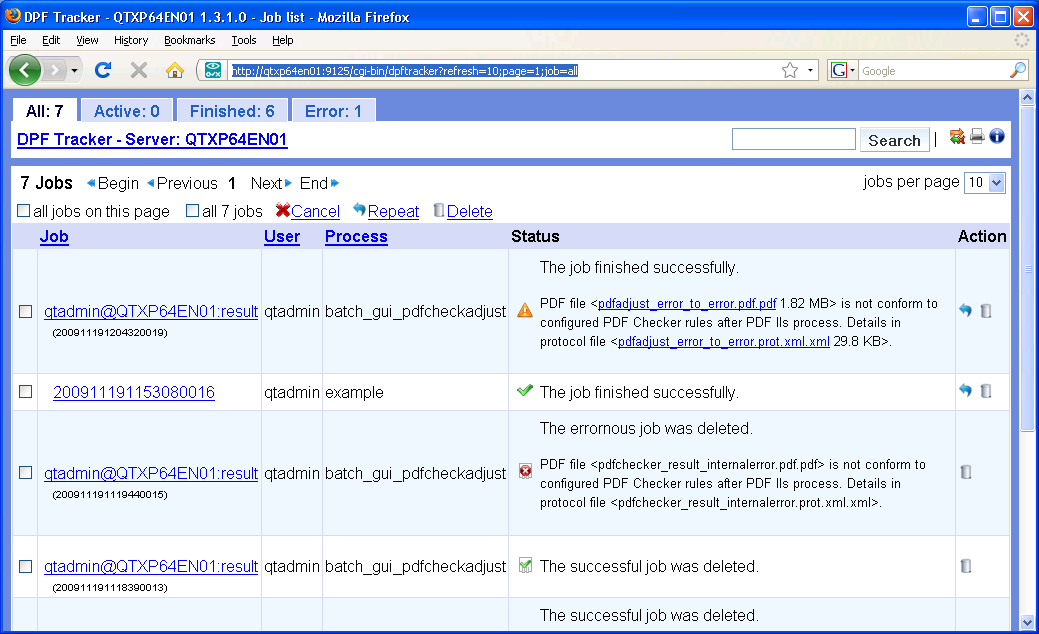
Overview
As of Digital Process Factory 4.0.0, DPF Tracker reads the job list and history from MongoDB.
Installation
DPF Tracker is a CGI script called by the Apache Web Server.
The CGI script is located here:
- on Windows:
C:\SEAL\applications\server\web\apache\cgi-bin\dpftracker - on Linux:
/opt/seal/server/web/apache/cgi-bin/dpftracker
By default, all settings required for DPF Tracker are set automatically when initializing the DPF system.
The Apache Web Server uses HTTPS on port 9126 by default. With HTTP, the default port is 9125. If you want to change the port for the Apache Web Server, use the sysinit command in the DPF environment.
Configuration
By default, every user may execute all operations in DPF Tracker. If you want to restrict these, you can configure that the user must logon in order to perform specific operations such as deleting jobs or to get more information such as the job size.
For the configuration of DPF Tracker, refer to these topics:
Start and Stop the Apache Web Server
DPF Tracker needs a running Apache Web Server. You have to start it separately. It will not be started by starting the DPF services.
This is how you start the Apache Web Server separately:
-
Enter the following command in the DPF environment:
sysstart Apache
This is how you stop the Apache Web Server separately:
-
Enter the following command in the DPF environment:
sysstop Apache
DPF Tracker's User Interface
-
If not done yet, start the Apache Web Server. Enter the following command in the DPF environment:
sysstart Apache -
Start the user interface:
- on Windows: Click the desktop link,
DPF Tracker, or selectDPF Trackerin the start menu. -
on Linux: Enter the following URL in a Web browser:
<protocol>://<server>:<port>/cgi-bin/dpftrackerReplace the placeholders with the protocol, server name and port of the Apache Web Server:
- for HTTPS:
https://localhost:9126/cgi-bin/dpftracker - for HTTP:
http://localhost:9125/cgi-bin/dpftracker
- for HTTPS:
Hint - DPF system server
On the DPF system server, you start the DPF Tracker's user interface by calling the
dpftracker.plPerl script. The script evaluates the server name and the port number from the Apache Web Server's configuration. - on Windows: Click the desktop link,
-
Optional, change the language of the user interface:
If you want to change the language, specify the
lang=languageparameter when entering the URL. Available values for<language>aredeoren:<protocol>://<server>:<port>/cgi-bin/dpftracker?lang=<language>Examples of calling DPF Tracker in the Web browser
https://localhost:9126/cgi-bin/dpftracker https://pc018.example.com:9126/cgi-bin/dpftracker?lang=en -
On how to use the user interface of the DPF Tracker, refer to Administrate Jobs in DPF Tracker.
Troubleshooting
For known problems with DPF Tracker, refer to Troubleshooting > DPF Tracker.