Set Parameters
The parameters in a DPF system are job parameters specified when assigning the job or in the configuration of the working unit or the workflow. Other parameters are set internally by the DPF system.
Hint - notation
Parameter names are case-insensitive. DPF also ignores underscores in parameter names. For example, CurrFileName is identical to CURRFILENAME, and WuName is identical to WU_NAME.
Literature - reference
For the description of all parameters, refer to Job Parameters. For the structure of working unit and workflow files, refer to Working Unit File and Workflow File.
Set Parameter Values
You specify parameter values and their defaults at the following locations. The list starts with the lowest priority. A value from a later location overrides a value from an earlier location:
- as default in the working unit file
- as default at the working unit position in the workflow
- as parameter value when assigning the job
- as parameter value in a
MODIFYposition of the workflow - as explicit value at the working unit position in the workflow
The defaults of a workflow apply only to the positions of the workflow itself, not to the working units, refer to ...as Default in a Workflow.
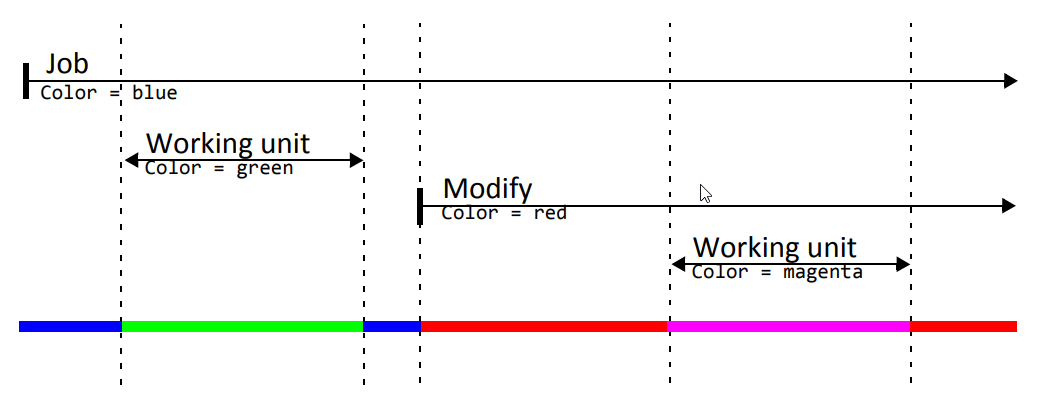
Here, you see where parameter values are set usually and how long each of them is valid, using the example of the parameter Color.
Hint - parameter expansion
When setting a parameter value explicitly, you can use the value of another parameter and operators. Refer to Expansions and Operators for Parameters.
Hint - DPF 3.x
DPF 3.x evaluates further locations: the defaults and the MAPPING of a workflow for its working units, and the DEFAULT attributes in the INPUT element of a working unit file. DPF 4.x ignores them. When you migrate a workflow, move these values to the locations listed above.
...in the Working Unit File
In the DEFAULTS element of the working unit file, you specify the default value for a parameter.
The parameter value is valid for the working unit unless the parameter already has got a value when the job reaches the working unit. This does not apply to working units of type WUNodeCall. For them, set the default value at the working unit position.
<custom.stamppdf
  TYPE="WUSystemCall"
  COMMAND="%DPFSRV%/scripts/custom/stamppdf.pl -parfile %PARFILENAME%"
  >
  <DEFAULTS
    Color="green"
    />
</custom.stamppdf>
For details, refer to Working Unit File - DEFAULTS.
...as Default at the Working Unit Position
At the working unit position in the workflow, you specify the parameter's default for this call of the working unit in the DEFAULTS child element. Each parameter is a child element with a val attribute.
The parameter value is valid for this call of the working unit unless the parameter already has got a value. It overrides the default in the working unit file.
<stamp_pdf
  TYPE="WU"
  NAME="custom.stamppdf"
  NEXT="END"
  >
  <DEFAULTS>
    <Color
      val="green"
      />
  </DEFAULTS>
  <MAPPING/>
</stamp_pdf>
For details, refer to Workflow File - WU.
...When Assigning a Job
When assigning a job, you specify a value for a parameter.
The parameter value is valid until the job is finished unless a working unit or a MODIFY position overwrites it.

...in a Modify Position
Using a MODIFY position in a workflow, you set a parameter value for a job.
The parameter value is valid until the job is finished unless a working unit or another MODIFY position overwrites it.
<set_color
  TYPE="MODIFY"
  NEXT="stamp_pdf"
  >
  <SET
    Color="red"
    />
</set_color>
...Explicitly at the Working Unit Position
At the working unit position in the workflow, you set a parameter explicitly to a value in the MAPPING child element, one attribute per parameter.
The parameter value is valid for this call of the working unit, independent of the value set for this parameter in the job or in a MODIFY position.
<stamp_pdf
  TYPE="WU"
  NAME="custom.stamppdf"
  NEXT="END"
  >
  <DEFAULTS/>
  <MAPPING
    Color="magenta"
    />
</stamp_pdf>
...as Default in a Workflow
In the DEFAULTS child element of a workflow, you specify defaults for parameters, one attribute per parameter.
Digital Process Factory uses these defaults only when it expands variables in the positions of the workflow, for example in an IF-THEN-ELSE condition or in a MODIFY position. A default applies only if the parameter has no value yet. Digital Process Factory does not pass these defaults to the working units.
<custom.stamp>
  <DEFAULTS
    STAMP="N"
    />
  <MAIN
    BEGIN="check_stamp"
    />
</custom.stamp>
For details, refer to Workflow File - DEFAULTS of a Workflow.
Expansions and Operators
When setting a parameter value explicitly, you can use the value of another parameter. For this, enclose the parameter by %, for example %CurrFileName%.
With the extended expansion, the operators for strings and integer values, you can spare yourself constructing an extra working unit in simple cases, for example, if you want to extract a part from the CurrFileName parameter for displaying the JobName parameter in DPF Tracker.
...for Filename Parameters
For file names, the following extended expansions are available:
dirNamefileNamebaseNamecompleteBaseNameextensionorsuffixcompleteExtensionorcompleteSuffix
Example
From CurrFileName = /tmp/archive.tar.gz, you get the following parts using the extended expansion:
%CurrFileName.dirName%:/tmp%CurrFileName.fileName%:archive.tar.gz%CurrFileName.baseName%:archive%CurrFileName.completeBaseName%:archive.tar%CurrFileName.extension%or%CurrFileName.suffix%:gz%CurrFileName.completeExtension%or%CurrFileName.completeSuffix%:tar.gz
...for String Parameters
For string parameters, the following operations are available: string operator
toLowertoUpper
Example
From OrigUserName = Stefan, you get the following strings using the string operators:
%OrigUserName.toLower%:stefan%OrigUserName.toUpper%:STEFAN
...for Integer Parameters
For integer parameters, the following operations are available:
increasedecrease
Example
From Counter = 5, you get the following values using the integer operators:
%Counter.increase%:6%Counter.decrease%:4
Hint - if-then-else
The extended expansion and the operators are possible on the left side in the if-then-else module, for example:
IF CurrFileName.extension.toLower eq "tif"
Hint - change
The integer operators change the values only temporarily during the IF query. That means, the parameters will not be changed. You can change the parameters in a Modify module, for example:
Counter = %Counter.increase%
Access Files
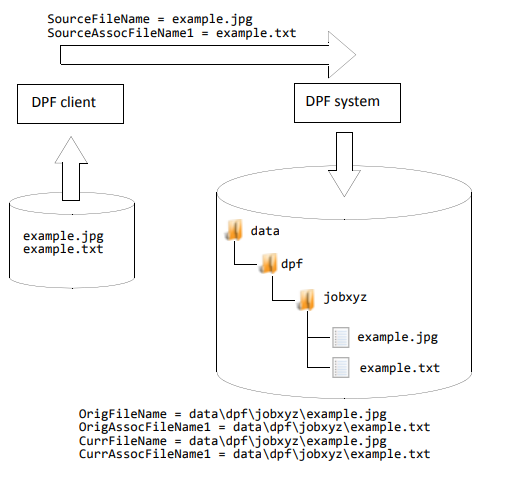
The parameters listed here are set and evaluated when accessing the job files:
CurrFileNameCurrAssocFileName<n>OrigFileNameOrigAssocFileName<n>SourceFileNameSourceAssocFileName<n>
Example of some parameter settings for accessing the job files
Hint - long file names
File names that are too long for the job directory of the DPF system are shortened. A warning is written into the log file. Further on, the long original file name is available in the SourceFileName parameter.
Delete Jobs
DPF 4.x deletes finished jobs according to the jobcleaner element in main.xml or main.customer.xml, refer to jobcleaner. Job parameters do not change the deletion times.
Handle Errors
When processing a job in a DPF systems, various error can occur.
If the error is not as serious that it results in terminating the program, the current values of some parameters are saved into new parameters beginning with the Err prefix. The saved parameters can be used, for example, to send an e-mail or to create missing sheets.
Then, the DPF system examines if an error handling is intended in the current process. Unless this is the case, the DPF system terminates the job as erroneous immediately.
If another error occurs during the error handling, the Err parameters already set are kept and the job is terminated as erroneous immediately.
The parameters listed here are set or evaluated when handling errors:
ErrJobStatusErrJobStatusTextErrReasonErrWfNameErrWfPathErrWfPositionErrWuNameJobStatusJobStatusTextWfNameWfPathWfPositionWuName
Send Back Files
The sendback working unit sends the files of a job back to the client.
The parameters listed here are set or evaluated by the sendback working unit:
Caution - directories
On DPF 4.x, the sendback working unit cannot send back a directory. It ignores the job parameter TargetDir. If the source is a directory, the job does not end and DPF Batch Client waits.